

As Wi-Fi networks expand from homes to offices, hotels, campuses, and commercial sites, a single wireless router may not provide sufficient coverage for every area.
One practical solution is to add one or more Wireless Access Points (APs) to the existing network. For compatible routers, Access Point Mode provides another way to extend Wi-Fi without creating an additional routed network.
So, what is Access Point Mode, how does it differ from Router Mode, and when should you use it?
This guide explains the basics and provides a practical reference for network installers, system integrators, distributors, and IT professionals.
What Is an Access Point?
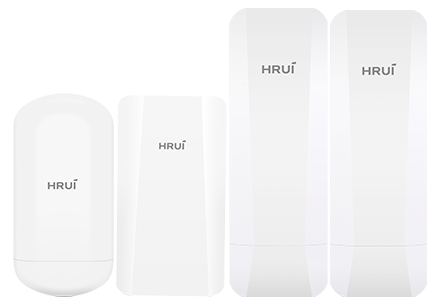
A Wireless Access Point, commonly called an AP, is a network device that provides Wi-Fi access to wireless clients and connects them to an existing wired network.
A typical deployment looks like:
Internet → Router/Firewall → Switch → Access Point → Wi-Fi Devices
The router or firewall handles network gateway functions such as routing, NAT, and DHCP, while the AP focuses on providing wireless connectivity.
Dedicated APs are commonly deployed in offices, commercial buildings, schools, hotels, and other environments where multiple areas require reliable Wi-Fi coverage.
Modern APs are available in different Wi-Fi generations, including Wi-Fi 6 and Wi-Fi 7, providing options for different network requirements and deployment scenarios.
What Is Access Point Mode?
Acess Point Mode is an opcerating mode that allows a compatible router or wireless device to work as an access point instead of acting as a separate router.
When AP Mode is enabled, functions such as routing, NAT, and DHCP are generally disabled or handled by the upstream router. The device connects to the existing LAN and provides Wi-Fi access to connected clients.
In simple terms:
Router Mode: The device manages the network.
Access Point Mode: The device extends the existing network through Wi-Fi.
This makes AP Mode useful when an existing router or gateway is already in place but additional wireless coverage is required.
Access Point Mode vs. Router Mode
Understanding the difference between the two modes is important when deploying multiple network devices.
| Feature | Router Mode | Access Point Mode |
| Main purpose | Manage and route network traffic | Provide Wi-Fi access |
| Routing | Enabled | Handled by upstream router |
| NAT | Enabled | Typically disabled |
| DHCP | Typically enabled | Typically disabled |
| Network structure | Creates/manages a network | Extends an existing network |
| Typical application | Internet gateway | Wi-Fi coverage expansion |
The exact functions available in AP Mode vary by device and firmware, so the manufacturer's specifications should always be checked before configuration.
How Does Access Point Mode Work?
In a typical network, the main router remains the gateway, while the AP provides wireless access.
Internet → Main Router → PoE Switch → AP → Wireless Clients
For example, an office may already have a router and Ethernet network but experience weak Wi-Fi coverage in meeting rooms or other areas.
Instead of adding another router and creating another network, an AP can be connected to the existing LAN to provide additional Wi-Fi coverage.
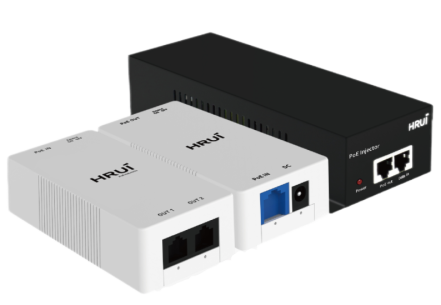
For professional deployments, APs can also be powered through PoE, allowing both network connectivity and power to be delivered through a single Ethernet cable.
How to Configure Access Point Mode
The exact steps vary by manufacturer, but the general process is straightforward.
1. Connect the AP to the Existing Network
Connect the AP to the existing router or network switch using Ethernet.
For PoE-compatible APs, a PoE switch or PoE injector can provide power through the Ethernet connection.
2. Select Access Point Mode
Log in to the device's management interface and select Access Point Mode or the corresponding operating mode.
On some devices, AP Mode is available directly under the operation mode settings.
3. Configure the Wi-Fi Network
Set the required:
■ SSID
■ Wi-Fi password
■ Security settings
■ Wireless band
■ Channel and other radio settings
For multiple APs, consistent wireless settings can make network management easier.
4. Check the Network Connection
After configuration, connect a wireless device to the AP and verify that it receives an IP address from the main router and can access the network normally.
When Should You Use Access Point Mode?
Expanding Wi-Fi Coverage
AP Mode is useful when an existing network needs additional Wi-Fi coverage without replacing the main router.
Typical applications include:
■ Offices
■ Commercial buildings
■ Hotels
■ Schools
■ Warehouses
■ Multi-floor buildings
Avoiding Multiple Routing Layers
Using multiple routers in Router Mode can create separate networks and may introduce issues such as double NAT.
Using AP Mode allows the main router to remain responsible for network management while additional devices provide Wi-Fi access.
Building a Multi-AP Network
For larger deployments, multiple APs can be connected to the same wired network:
Router/Firewall → Network Switch → Multiple APs
This architecture is suitable for expanding Wi-Fi coverage across different rooms, floors, or areas.
Access Point Mode vs. Wireless Repeater
Access Point Mode and wireless repeater mode are not the same.
An Access Point normally uses a wired network connection as its backhaul:
Wired Network → AP → Wi-Fi Clients
A Wireless Repeater receives an existing Wi-Fi signal and retransmits it to extend wireless coverage.
For professional network deployments, a wired AP connection is generally preferred when Ethernet cabling is available because it provides a dedicated wired backhaul.
Choosing the Right Wi-Fi Access Point
When selecting an AP, coverage is only one consideration.
Network professionals should also evaluate:
■ Wi-Fi standard
■ Wireless performance
■ Number of concurrent clients required
■ Ethernet uplink
■ PoE requirements
■ Indoor or outdoor deployment
■ Management requirements
■ Installation environment
For current network deployments,Wi-Fi 6 APs are a practical choice for offices, commercial networks, and general enterprise wireless applications, while Wi-Fi 7 APs are designed for networks that require newer-generation wireless performance and higher overall capacity.
The right choice depends on the actual network environment, client devices, coverage requirements, and budget.
Frequently Asked Questions
Is Access Point Mode the same as Router Mode?
No.
Router Mode allows a device to manage routing and other gateway functions. Access Point Mode allows the device to provide Wi-Fi access through an existing network, with gateway functions handled upstream.
Can I use multiple APs on one router?
Yes. Multiple APs can be connected to the same network through Ethernet switches to provide Wi-Fi coverage across different areas.
Does an AP need a router?
A typical AP works with an upstream router, firewall, or gateway that provides network and Internet access.
Does an AP require PoE?
Not necessarily. However, PoE is widely used for professional AP deployments because it allows network connectivity and power to be delivered through one Ethernet cable.
Can an old router be used as an AP?
Yes, if the device supports Access Point Mode or can be configured appropriately. For larger professional deployments, dedicated APs are generally easier to deploy and manage.
Conclusion
Access Point Mode provides a simple way to extend an existing network's Wi-Fi coverage without adding another independent routing layer.
The basic principle is straightforward:
The router manages the network. The AP provides wireless access.
For homes and small networks, AP Mode can be useful for extending existing Wi-Fi coverage. For commercial and professional deployments, dedicated Wi-Fi 6 and Wi-Fi 7 access points provide a more scalable solution for building reliable wireless networks.
When selecting an AP, consider not only Wi-Fi performance, but also deployment environment, Ethernet connectivity, PoE requirements, client density, and network management needs.